
Microsoft Outlook has all sorts of shortcuts in place for the people who know how to use them. Dave’s Computers tech support has some tricks up our sleeve to help small business owners get the most out of Microsoft Outlook. The following list of tips should allow all individuals to save themselves time, energy, and even money when they are going about using Microsoft Outlook, whether they are trying to delete email or just use their own services more effectively. Even increasing Internet security is going to be that much easier with a good portion of the tips available here.
How can grouping email messages in Outlook save time and frustration?
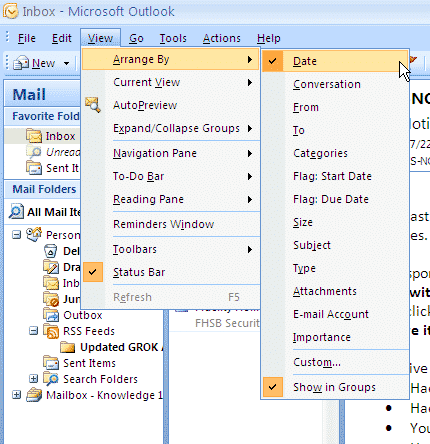
Grouping email messages in Outlook can save time and frustration by allowing you to organize related emails into conversations, making it easier to identify and manage important messages while quickly deleting redundant ones. To do this, access the View tab and click ‘Show as conversations,’ then activate the ‘Arrange by’ bar and set your desired grouping options in ‘View settings.’ This method helps distinguish between important and deletable messages efficiently.
Emails can be emerged into conversations if people access the View tab and click ‘Show as conversations.’ Then, users need to activate the ‘Arrange by’ bar. Once they activate the ‘View settings’ function, they can set the grouping options that they want. Once people get into the habit of doing this, they will quickly be able to distinguish between the important messages and the messages that can just be checked off and deleted without comment.
How can filtering email messages in Outlook improve organization?
On the Home tab, there should be a Filter Email drop down. A search box should be made available to anyone who does this. From there, users will be able to access emails from whatever category currently interests them, whether it is more recent emails, less recent emails, emails with attached files, or others. There is also a More Filters option that people can access in order to narrow down their searches further to save themselves additional time and energy.
How can you easily remove unnecessary messages in Microsoft Outlook?
As long as users are using the Microsoft Outlook versions from 2010 or 2013, they should have a Clean Up tool that will be able to help them get rid of emails that are truly redundant. Messages are often reproduced in other messages during email conversations, which creates a situation in which people are wasting endless amount of space on messages that already exist elsewhere. This tool is actually able to detect that sort of duplicated content, so people can avoid wasting space and wasting time on it. There is a drop down for Clean Up on the Home tab, and people can use this function to clean up individual conversations. However, they will also be able to use this function to clean up entire folders if that is what they want. The Settings button can allow users to distinguish between the messages that need to be either deleted or preserved.
How can you schedule email delivery for a future date in Microsoft Outlook?
There are lots of reasons why someone would want to send an email at a future date. They might want to send their future selves certain messages. They might also want to withhold certain pieces of information from the recipient for the time being. On the Options tab, there should be an option that will allow users to Delay Delivery. When they get to that area, they can choose a date and time for the field that says ‘Do not deliver before.’
Even then, the users should still hit the Send button as if they were sending any other email. However, the message still isn’t actually going to be sent to the recipient in question until the aforementioned date and time. Some people like to send messages to themselves in order to remind their future selves of their plans at the time, or to give their future selves advice. This is a whimsical option that is now possible in Microsoft Outlook.
How can you manage or block unwanted emails in Microsoft Outlook?
Almost everyone who has ever used email before will run into some sender who keeps on sending annoying or unnecessary emails that can get through other filters. Other unfortunate individuals might actually be dealing with individuals who are harassing them in some way, which is going to make the experience of getting lots of emails from them outright emotionally painful. At both ends of the spectrum, there is a solution. On the Home tab, there should be a Junk drop down. There should then be a Junk Email Options option that people can select. From there, people will be able to differentiate between what qualifies as Junk and what does not qualify as Junk, which can more or less revolutionize their email Inboxes altogether.
People who receive a lot of Spam from one source can make anything from that source Junk. It’s the same with people who receive a lot of unwanted email from certain individuals, or even from certain nations. People who deal in International Business might have that problem, although many people have that problem in a global society. Either way, it is now a fixable problem.
How can you send text messages from Microsoft Outlook without a smartphone?
As long as people register with third-party messaging services in advance, they are going to manage to send SMS text messages to people on their own smartphones or on anything else. These messages might stand a better chance of actually reaching them, since plenty of people are going to send text messages as a form of communication instead of email in this day and age. It is also true that people tend to check their text message folders more often than their email folders these days. Learning how to send text messages to people from Microsoft Outlook can be very convenient for people who are on their computers at the time and need to get some information to their contacts quickly.
On the Home tab, there should be a New Items drop down. There should also be an option to select Text Message. From there, people can specify that they are trying to find a text messaging service for a mobile operator.
How can you adjust Microsoft Outlook for different time zones?
Lots of people work internationally, or at least do work that is going to manage to cross time zones. There should be an option for File Options Calendar that will allow people to set a local time zone appropriately, thus making it that much easier for them to get calendar entries and email timestamps that have been labeled in the correct manner.
How can you verify email sender identity using encryption in Microsoft Outlook?
Getting emails cryptographically signed can allow people to confirm that they are the ones who sent their emails, which is going to allow them to avoid getting emails that were sent from people posing as them. Individuals who are trying to increase their levels of Internet security as much as possible are encouraged to learn how to do this. For individuals who are in the process of being harassed by someone, this might be an outright means of survival.
Users need to open up the Trust Center settings to do this. They can then activate Email Security. People who have a digital ID or people who create a digital ID can then enable the digital signing and the encryption.
How can you sync Google Calendar with Microsoft Outlook?
Lots of people rely on Google Calendar for all of their scheduling concerns, and switching back and forth between Google Calendar and all of their email checking can be somewhat irritating for the people who are already running late for whatever reason. Individuals who learn to sync up these two functions are going to make it that much more likely that they won’t miss anything. Users will need to go to the Calendar Settings menu. They will need their calendar’s iCal feed address. They can then access the Internet Calendars tab in Outlook and paste in the address in order to make sure that the information from both of these services is going to interact correctly.
How can you create a search folder for common queries in Microsoft Outlook?
People who perform the same search over and over again ought to be able to just create a shortcut that will allow them to do this more rapidly. They will be able to do this in Microsoft Outlook. In the Search Folder menu, there should be a Folder tab. From there, people can click on the New Search Folder option, and they will be able to get everything that they need.
For more tech support tips from Dave’s Computer, get in touch with us with your computer repair and IT support issues by calling 958-428-9558.