How to Optimize Your Custom PC for Gaming
Unlock the best performance from your gaming rig with this clear, step-by-step guide. Whether you’ve built your own PC or had it assembled by the custom PC experts at Dave’s Computers NJ, knowing how to optimize your custom PC for gaming can mean the difference between a laggy experience and seamless gameplay. At Dave’s Computers, we help gamers across New Jersey get the most out of their systems. This guide walks you through practical settings, performance adjustments, and advanced tweaks that deliver smoother frame rates and sharper graphics for every game you play.
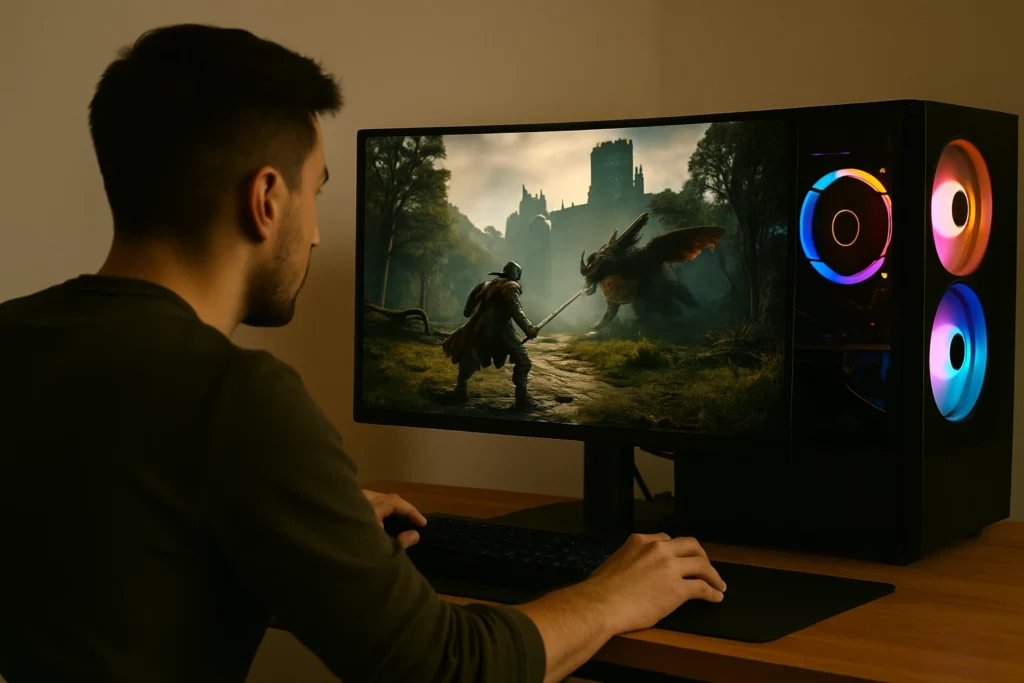
Enable Game Mode for Faster Performance
One of the simplest ways to get an immediate boost is by enabling Game Mode in Windows. This built-in feature prioritizes your system’s resources by limiting background activity and focusing on your game.
How to enable Game Mode:
- Click Start, then Settings
- Navigate to Gaming > Game Mode
- Toggle Game Mode On
Once enabled, your system will automatically recognize when you’re running a supported game and adjust performance settings in the background. It’s a small step that can make a big impact, especially for games that require consistent frame rates.
For gamers in New Jersey looking for more than just DIY fixes, Dave’s Computers offers in-shop support to configure Game Mode and related settings. We’ve seen firsthand how this simple adjustment can reduce stuttering and improve responsiveness, especially on mid-range systems or older builds that need a boost.
Boost FPS and Increase Stability with Smart Adjustments
Getting higher FPS (frames per second) is one of the top goals for any PC gamer. A smoother frame rate doesn’t just make games look better; it also improves your reaction time and overall experience. The good news? You don’t need to overhaul your entire setup. A few smart changes go a long way.
Start with these essential steps:
- Update your graphics drivers: Visit the official site for NVIDIA, AMD, or Intel to get the latest version. Updated drivers often include FPS improvements and stability fixes for new games.
- Set your system to High Performance: Go to Settings > System > Power & Sleep > Additional Power Settings and select the High Performance plan.
- Close background apps: Shut down programs running in the background that use up CPU, memory, or disk resources, especially browsers, update tools, and chat apps.
- Use GPU optimization tools: Programs like NVIDIA GeForce Experience or AMD Adrenalin can auto-adjust graphics settings for a better balance between quality and speed.
You can also manually adjust in-game graphics settings:
- Lower shadow quality
- Reduce anti-aliasing
- Turn down texture resolution
These changes often have the biggest impact on frame rates without making your game look blurry or outdated. If you’re using a hard drive instead of an SSD, defragmenting it regularly can also speed up load times and reduce stuttering.
At Dave’s Computers, we’ve helped hundreds of local gamers get more from their current systems through targeted performance enhancements and expert support. See also our guide on workstation vs gaming PC to understand how different build priorities affect optimization.
Use Hardware-Accelerated GPU Scheduling
Once you’ve tackled the basics, the next step is to unlock even more gaming performance using advanced GPU settings. Hardware-accelerated GPU scheduling lets your graphics card handle memory management directly, reducing latency and improving responsiveness.
How to enable GPU scheduling:
- Go to Settings > System > Display
- Scroll down and click Graphics Settings
- Toggle Hardware-accelerated GPU scheduling to On
- Restart your PC for the change to take effect
Before turning this on, make sure your graphics drivers are up to date. This feature works best with recent driver versions from NVIDIA, AMD, or Intel. It’s especially effective during fast-paced, high-action scenes where even a slight drop in latency can make gameplay feel smoother.
Combine this with your GPU’s control panel settings (NVIDIA Control Panel or AMD Radeon Settings) to fine-tune render quality, refresh rate, and vertical sync.
Dave’s Computers can help with advanced GPU setup for users who want deeper customization. If tweaking BIOS or memory allocation sounds overwhelming, drop by our Somerville shop and we’ll walk you through it.
Lower Your Resolution for Smoother Gameplay
High-resolution displays look amazing, but they put serious strain on your graphics card, especially during intense scenes or multiplayer matches. If your system is lagging or your FPS drops unexpectedly, lowering your resolution may be the fix.
Dropping from 4K to 1440p, or from 1080p to 900p, can free up GPU resources and reduce input lag. This adjustment is often enough to get smooth, stable performance without a major hit to visual quality.
Combine resolution tweaks with:
- Enabling Game Mode in Windows
- Lowering in-game settings like effects, post-processing, or draw distance
- Turning off unnecessary overlays (Discord, Steam, etc.)
This combination can transform a choppy experience into a fluid one, especially useful for fast-paced games like shooters where consistent frame rates matter more than ultra-high detail.
At Dave’s Computers, we regularly help New Jersey gamers balance resolution and graphics settings for maximum playability. If you’re unsure which resolution your system can handle comfortably, bring it in and we’ll assess it.
Need Help Optimizing Your Gaming PC?
Keeping a custom PC running at peak performance takes more than one-time tweaks; it takes regular maintenance, driver updates, and the occasional hardware review. If you’ve run through these steps and still aren’t getting the performance you expect, bring it in.
We offer in-shop diagnostics ($75, credited toward any repair), hardware upgrades, and hands-on configuration help at our Somerville, NJ location. No appointment needed: drop it off at 75 N Bridge St or call us at (908) 428-9558.