
If you’re into computer games, you will likely have a Steam account and a few Steam games installed into your computer. What happens to those games if you upgrade your computer or need to replace the hard drive? This is a question that we had to answer this week with a customer in our New Jersey computer store. Just how can you use Steam backups to back up your game library without data loss?
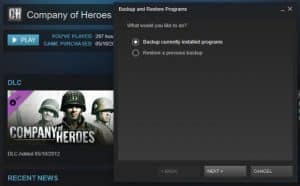
You can use Steam's built-in backup system by following these steps: 1. Open Steam and select Library. 2. Select Steam and Backup and Restore Games. 3. Select Backup currently installed programs in the next window. 4. Select all the games you want to back up in the next window. 5. Select Next and then the location to create your backup. 6. Select a filename, select a suitable size and select Next. 7. Select Open backup folder to make the copies. This procedure may take some time depending on your library size. Once done, you'll have a compressed version of your Steam library that you can restore from. If moving Steam to a new disk, install Steam, then follow steps 1 and 2, selecting 'Restore a previous backup' at step three to import games. Steam may download a few additional files to make them playable but the process is very simple.
To back up your Steam game saves, you should manually back them up along with your game data, as Steam's automatic system does not include save files. Typical game save file locations include: C:\Users\USER\Documents, C:\Users\USER\Documents\my games, and C:\Users\USER\AppData\Local. Some games offer cloud backup for save games, and Steam also has this feature, so it's worth checking if your saves are already in the cloud. Alternatively, apps like Gamesave Manager can help manage save files for you.
So how can we back up games and retain these dependency links without losing data or functionality?
There are two ways to back up your Steam library without data loss. One uses Steam’s built in backup system and the other is performed manually.
How do you use Steam's built-in backup system?
You can perform manual Steam backups by locating your Steam games folder and copying the desired files. In Windows, games are typically at C:\Program Files (x86)\Steam\steamapps\common. On a Mac, they are at Library\Application Support\Steam\SteamApps\common. Within the 'common' folder, you'll find separate folders for each game. To back up: 1. Set up a destination save folder, ideally on a different physical drive. 2. Copy individual games or the entire common folder. 3. Compress the backup folder if desired. This process will not affect Steam's normal operation. Remember to also back up your save games using the process described in the 'Backup your game saves' section if you don't use cloud backups.
- Open Steam and select Library.
- Select Steam and Backup and Restore Games.
- Select Backup currently installed programs in the next window.
- Select all the games you want to back up in the next window.
- Select Next and then the location to create your backup.
- Select a filename, select a suitable size and select Next.
- Select Open backup folder to make the copies
Depending on how large your Steam library is, this procedure may take a few minutes or an hour or more. Once done, you should have a somewhat compressed version of your steam library. You cannot run games from the backup, but you can restore from it.
If moving Steam to a new disk, all you need to do is format the new disk as NTFS and install steam. The run steps 1 and 2 above and at step three, select Restore a previous backup instead of Backup currently installed programs. Then follow the wizard to import the games. Steam may download a few files to make them playable but the process is very simple.
How do you back up your Steam game saves?
The one thing Steam’s automatic system does not do is also back up your save files. While the installations are very tidy and ordered, game save files are not. Rather than having a single place to save games, Steam honors the original save location of the game in question and does not back them up.
Typical game save file locations include:
- C:\Users\USER\Documents
- C:\Users\USER\Documents\my games
- C:\Users\ USER\AppData\Local
Some games have cloud backup for save games. Steam has this feature too so it is worth checking to see if your save games are already backed up into the cloud. Otherwise you should manually backup your saves along with the game data.
Otherwise, apps such as Gamesave Manager can help manage save files for you.
How do you perform manual Steam backups?
There is nothing wrong with using the inbuilt Steam backup system. It actually works quite well. If you prefer to do things yourself, there is a manual method where you can backup all your game files as you see fit. The downside is that the files are no compressed or you have to use Winzip or other compression program to do it yourself.
In Windows, your steam games will be located at: C:\Program Files (x86)\Steam\steamapps\common. If you installed Steam elsewhere, the file structure should be the same from Steam downwards.
On a Mac, your steam games will be located at: Library\Application Support\Steam\SteamApps\common.
Within the ‘common’ file you should see a separate folder for each game you have installed in Steam. You may see some folders that are no longer installed on Steam. You can choose to back these up or not as you see fit.
- Set up a destination save folder on your computer. This should ideally be on a different physical drive to prevent data loss.
- Copy either individual games into your backup file or the entire common folder. It is up to you which you do.
- Compress the backup folder or not as you see fit.
Steam will work as normal and taking a backup of the files will not affect operation one bit.
Don’t forget to back up your save games too. Use the same process as in ‘Backup your game saves’ above to keep a local copy of your saves if you don’t use or don’t want cloud backups.
Manually restore Steam files
If anything does happen to the main drive where Steam is installed, you have a full backup of all your games. While a new installation will force a download of game files automatically, that could easily reach into the hundreds of gigabytes. This way, you can copy across core files and Steam only has to copy those that are missing.
To restore:
- Reinstall Steam if necessary.
- Copy all the files manually across from your backup folder into the new common folder from the fresh installation of Steam. Or the current common folder.
- Select each game and then Install. Steam will check the backed up folder and automatically download any files missing.
Steam has a clever auditing feature that allows it to check a game folder, assess what is there and what is not and automatically download any missing files. So for a game that is 30 GB or more in size, rather than downloading the entire game once more, Steam may only need to download a couple of hundred megabytes of data to get the game working once more. Multiple that by the number of games you own and you see a massive time saving!