
Major updates don’t come around very often in Windows but when they do it pays to prepare properly for them. The Windows 10 Anniversary Update is a case in point. Released a year after Windows 10 and just after the free upgrade period expired, the Anniversary Update is a major update that every computer will need to install at some point. To ensure it goes smoothly, here’s how to prepare Windows 10 for major updates.
When they released Windows 10, Microsoft said that this was the last complete version of an operating system they would release. Future releases would be as updates to the Windows core. While nobody actually believes that, it makes sense to get into the habit of preparing for major updates just in case it’s true. Here’s how.
How can you prepare Windows 10 for major updates?
To prepare Windows 10 for major updates, you need to back up your data, fix existing issues, clear faults, and perform necessary updates. This involves checking event logs for errors, updating device drivers, and running a System File Check. Perform each of these steps in turn to prepare your system for an upgrade. Do this every time there is a major update for Windows. Type ‘event’ into the Search Windows (Cortana) box on your desktop. Select Windows Logs from the left pane and check Application and System logs. Check for red errors and troubleshoot them as much as possible. Read the error text and use Google to find out how to fix the error. Right click the Windows Start button and select Device Manager. Upgrade all major device drivers such as graphics, sound, network and motherboard. Either let Windows take care of it or download the drivers directly from the manufacturer’s website. Open a Command Prompt window as an administrator. Type ‘sfc /scannow’ and let the System File Check process complete. Check event viewer once more for any new errors. This is a typical process for preparing any computer for a major update. Feel free to print this and keep it somewhere safe as you will likely need it in the future. If you’re not comfortable performing computer troubleshooting or would rather let the experts take care of it, contact Dave’s Computers today. We’re here to help!
Perform each of these steps in turn to prepare your system for an upgrade. Do this every time there is a major update for Windows.
- Type ‘event’ into the Search Windows (Cortana) box on your desktop.
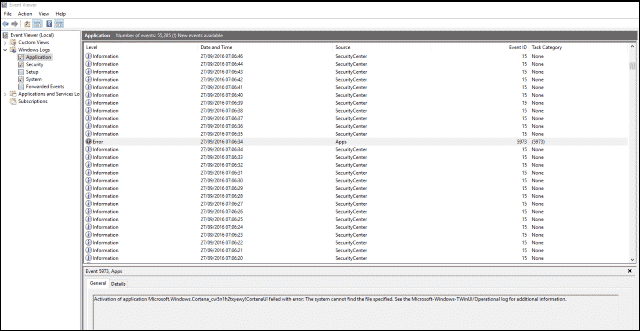
- Select Windows Logs from the left pane and check Application and System logs.
- Check for red errors and troubleshoot them as much as possible. Read the error text and use Google to find out how to fix the error.
- Right click the Windows Start button and select Device Manager.
- Upgrade all major device drivers such as graphics, sound, network and motherboard. Either let Windows take care of it or download the drivers directly from the manufacturer’s website.
- Open a Command Prompt window as an administrator.
- Type ‘sfc /scannow’ and let the System File Check process complete.
- Check event viewer once more for any new errors.
This is a typical process for preparing any computer for a major update. Feel free to print this and keep it somewhere safe as you will likely need it in the future.
If you’re not comfortable performing computer troubleshooting or would rather let the experts take care of it, contact Dave’s Computers today. We’re here to help!