Save $25 First-time repair — call today
75 North Bridge St, Somerville NJ 08876 - (Behind Bank of America) Hours M-F 10am-5pm Sa 9-2 (908) 428-9558

Related Posts

Before You Rage-Quit Your PC, Try These Upgrades First | Custom PC Builds Bridgewater NJ | Dave's Computers
Custom PC Builds · Bridgewater NJ

Before You Rage-Quit Your PC,
Try These Upgrades First

By David · Dave's Computers ???? Serving Bridgewater, Somerset County & Central NJ ☕ 8 min read
You're mid-match. Frame rate tanks. Game stutters. You lose. You blame lag. Your teammates blame you. You sit there staring at your rig wondering if it's finally time to nuke it from orbit and start fresh.

Hold up. Before you spend $1,500+ on a new machine — hear me out. I've been repairing and building computers at Dave's Computers in Somerville since 2011, and I see this exact situation walk through my door constantly. Sometimes the fix is a $60 SSD. Sometimes it's RAM. Rarely is it "burn it all down and start over."

This is the unsexy upgrade nobody talks about — and it's also the one that fixes the most complaints I hear. When your drive gets close to full, your PC slows down in ways that feel like a hardware problem but absolutely aren't. Windows crawls. Games take forever to load. Your fan spins up just trying to open File Explorer.

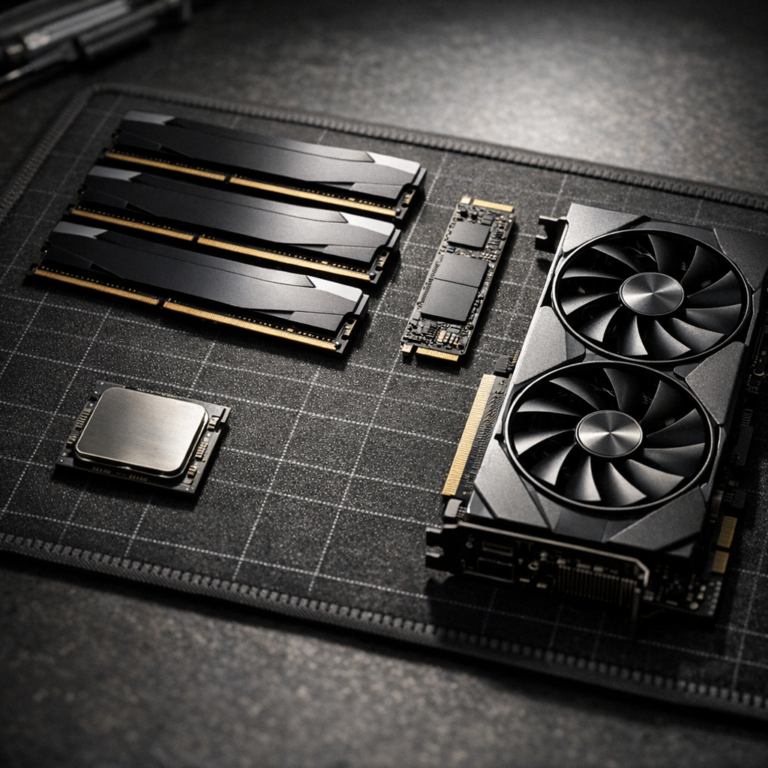
The fix: SSDs have gotten seriously affordable. If you're still running an old spinning hard drive, upgrading to a modern SSD is going to feel like you bought a brand new computer. The ranking from fastest to "still way better than an HDD":

  • NVMe M.2 SSD — blazing fast, plugs directly into your motherboard. This is your target.
  • SATA SSD — still very fast, drop-in replacement for most HDDs. Great budget option.
  • ????
    HDD (spinning disk) — please don't use these for your OS or games anymore. It's 2025.
????
The Verdict Almost always worth doing. Low cost, massive impact. Do this first before anything else. Not sure if your board has an M.2 slot? Swing by — we can check it as part of our $75 diagnostic.

Think of RAM like your desk workspace. If your desk is tiny, you're constantly shuffling papers around just to find what you need. More RAM = bigger desk. Your CPU can breathe, multitask, and stop freaking out when you've got Discord, Chrome, and a game all screaming for attention at the same time.

16GB is the current baseline for gaming. If you're under that, you're leaving performance on the table. 32GB is the sweet spot if you're streaming, editing, or running modern open-world titles that eat memory like it's an all-you-can-eat buffet.

⚠️ Watch Out You need to match your existing RAM (speed, type, ideally brand) or replace the entire kit. Mismatched RAM causes all kinds of weird instability. Drop by or message us — I can pull up what's compatible with your board in about two minutes.
????
The Verdict High-value upgrade if you're under 16GB. Prices have crept up a bit thanks to AI chip demand, but still very worth it.

I know. This is the upgrade everyone wants to talk about. New GPU = more frames = games look incredible = you immediately tell everyone you know. And it's true — a GPU upgrade delivers the most visible performance boost for gaming: better frame rates, higher resolutions, ray tracing, the works.

But here's what trips people up every single time:

  • ????
    Your PSU might not be strong enough. Modern GPUs — especially RTX 50-series — pull serious wattage. Underpowered PSU = very bad day.
  • ????
    Your case might not physically fit it. The newer high-end cards are massive. Some won't fit in mid-towers or older cases.
  • ⚙️
    Your motherboard might bottleneck it. Older PCIe slots can't deliver full bandwidth. You'll still improve — just not as much as the box promises.
  • ????
    Driver cleanup is mandatory when switching brands. Going Nvidia → AMD or vice versa? Full driver wipe required. Skip this and you'll get glitches that'll make you think your new card is defective.
????
The Verdict High reward, high complexity. This is the upgrade I most often recommend getting professional help with — not because it's impossible, but because 4–5 things need to line up. We do GPU upgrades and compatibility checks regularly. Worth a consult before you spend $600+.

Here's one most casual users completely overlook. If your PC gets loud under load, or your CPU temps are spiking into the 90°C range, your CPU is thermal throttling — deliberately slowing itself down to avoid cooking itself. That's where those mysterious frame drops come from that don't seem tied to anything logical.

A better cooler — whether a beefier air cooler or an AIO liquid — fixes this and can actually extend the life of your CPU. Before buying, check your case's radiator clearance (240mm vs 360mm), cooler height for air units, and whether thermal paste is included.

????
The Verdict Underrated, affordable, and genuinely saves CPUs that have years of life left in them. If your PC is loud and hot, start here before assuming you need new everything.

  • ????
    CPU upgrade almost always means a new motherboard. New motherboard might mean new RAM. At that point you're basically building a new PC. Unless you're swapping within the same chipset family (like AMD AM4), this usually doesn't make financial sense.
  • ????
    Motherboard upgrade by itself almost never makes sense unless something died. Need Wi-Fi or Bluetooth? A $20 USB adapter solves it.
  • ????
    PSU upgrade only makes sense if you're underpowered after a GPU upgrade, or it's actually failing.
???? My Honest Take For CPU + motherboard combos: put that money toward a custom build instead. You'll get more performance per dollar and a system that was actually designed to work together from day one.

Seriously. Before you touch a single component:

????
Disable Startup Apps

Too many programs launching on boot eats RAM and tanks startup time every single day.

????
Scan for Malware

Sometimes "my PC is slow" is a virus eating your CPU — not a hardware problem at all.

????
Fresh Windows Install

A clean OS reinstall is like a factory reset for your performance. Underrated move.

????
Update GPU Drivers

Outdated drivers cause frame drops and crashes that look exactly like failing hardware.

????
$75 Diagnostic at Dave's Not sure what's actually wrong? Our diagnostic is $75 and tells you exactly what's going on before you spend a dime on parts. We'd rather give you a straight answer than have you throw money at upgrades that won't fix your problem.

Need Custom PC Builds in Bridgewater NJ?

Whether you need a quick storage upgrade, a full custom PC build, or just want someone to honestly tell you whether your rig is worth saving — we're your local shop.

Dave's Computers · 75 N Bridge St, Somerville NJ 08876 · Behind Bank of America
Mon–Fri 10am–5pm  |  Sat 9am–2pm  |  No Appointment Needed  |  Walk-Ins Welcome
Serving Bridgewater, Somerset, Franklin Township & all of Somerset County since 2011

// Frequently Asked Questions

Is it worth upgrading my old PC or should I just buy a new one?
It depends on what's actually wrong with it. Storage and RAM upgrades are almost always worth it on a machine that's 3–5 years old. If you need a new CPU and motherboard, it usually makes more sense to build fresh. We'll give you an honest answer — we're not trying to upsell you on a build you don't need.
Do you do custom PC builds for Bridgewater NJ customers?
Yes. We build custom PCs for customers throughout Somerset County, including Bridgewater, Franklin Township, Raritan, and beyond. You pick your parts and budget; we put it together right. Customers drive in from Bridgewater to our Somerville shop — it's about 10 minutes down Route 202.
How long does a GPU or RAM upgrade take?
Most RAM swaps take under 30 minutes. GPU installs with driver cleanup are usually same-day. We'll give you a realistic timeframe when you drop off — no vague "a few days" nonsense.
Do you charge for diagnostics?
Yes — diagnostics are $75 at Dave's Computers. That gets you a clear answer on exactly what's wrong before you spend anything on parts. We'd rather charge you $75 for the truth than have you guess your way through $300 in upgrades that don't fix the real problem.
Can you help me figure out if my PC is bottlenecking my GPU?
Absolutely. This is one of the most common questions we get. Bring it in or call us — we can run benchmarks and tell you exactly where your system is leaving performance on the table.

Related Posts

Laptop Screen Repair Near Me | NJ | Dave's Computers Somerville
Laptop Screen Repair — Somerville, NJ

Your Cracked Screen,
Fixed in 24–48 Hours.

Serving customers from across New Jersey — Dave's Computers in Somerville, NJ is your go-to shop for laptop screen replacement. Bring it in for a free in-person estimate. No price games, no hidden fees.

In business since 2011
Free in-person estimate
Most repairs: 24–48 hrs
All major brands & models
Curbside pickup available
No appointment needed
$20
OFF
New Customer Exclusive
First-time customers only. Mention this offer when you call or drop off your laptop. Cannot be combined with other offers.
Use code NEWDAVE20 One per customer
Simple 4-step process

How Laptop Screen Repair Works at Dave's

No appointments, no surprises. You'll know exactly what your repair costs before we touch anything — guaranteed.

1

Call or Walk In

Call 908-428-9558 or walk into our Somerville, NJ shop. No appointment needed — ever.

2

Free Inspection

We inspect your screen, hinges, and cables — then give you a clear, honest estimate. Zero charge to look.

3

We Fix It

You approve the quote. We source the exact replacement panel and complete the repair — usually within a day.

4

Pick Up & Go

Your laptop is ready. Pick up in Somerville or use curbside drop-off. Back to full brightness.

2011
Serving NJ since
24–48
Hour typical turnaround
$0
Cost for your estimate
100+
Screen models serviced
Common screen problems

Is Your Laptop Screen Doing Any of This?

We've fixed every screen symptom you can think of for customers across Somerset County and all of New Jersey.

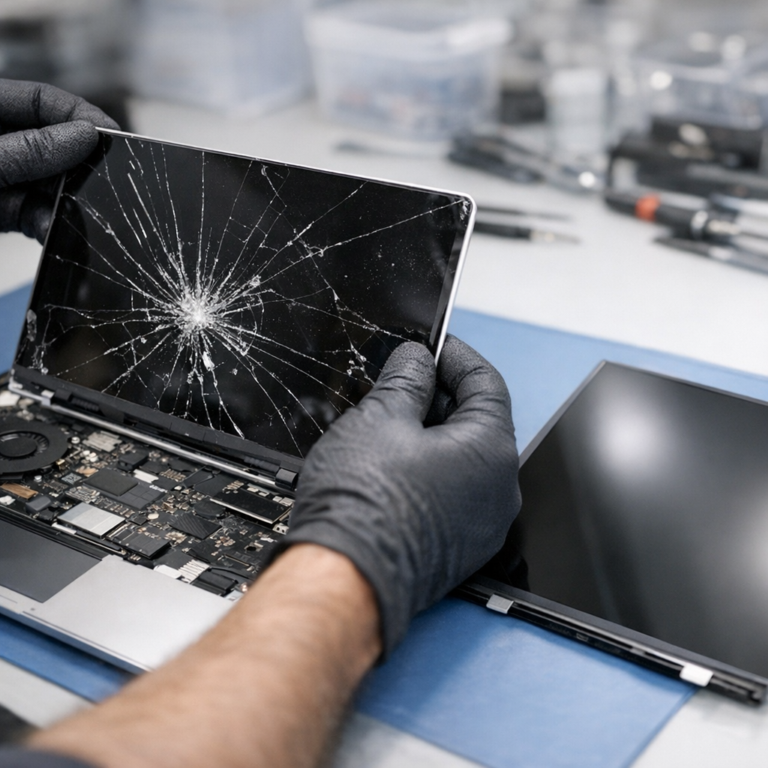
Cracked or Shattered Screen

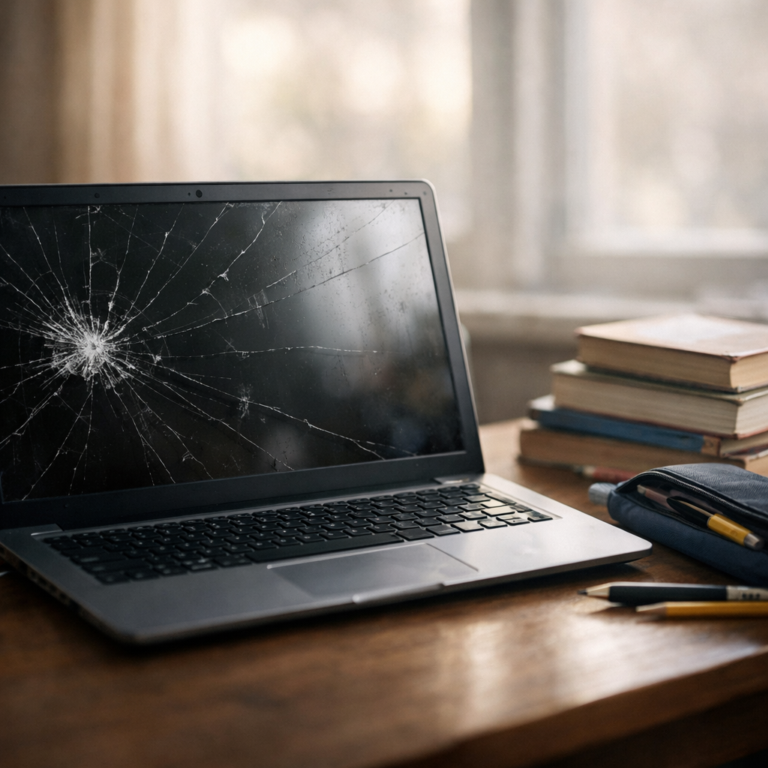
Physical impact damage — jagged lines, spreading cracks, sharp edges. The panel needs full replacement.

Black or Blank Screen

Laptop powers on, but the display shows nothing. Could be screen, cable, or backlight — we diagnose first.

Flickering or Blinking

Intermittent flicker is usually a loose cable or failing backlight — both common and fixable.

Lines, Spots, or Dead Pixels

Vertical or horizontal lines, ink-bleed, or dead pixels all mean internal LCD damage — panel replacement needed.

Dim or Washed-Out Display

Barely visible at max brightness? A failing LED backlight is typically the cause — fully restorable.

Broken or Stiff Hinge

We inspect hinges on every estimate — a broken hinge will crack a new screen within weeks if left unfixed.

Touchscreen Not Responding

Touch digitizer failure is separate from the display panel. We handle both 2-in-1 and standard touch displays.

Laptop Won't Open Flat

Physical damage to the lid, bezel, or hinge brackets — we assess structural damage as part of every inspection.

Every major brand & model

Laptop Brands We Repair Near Somerville, NJ

From everyday consumer laptops to business workstations and gaming rigs — if it has a screen, we've replaced it. Customers drive in from across New Jersey for these repairs.

Dell
InspironXPSVostroLatitudePrecisionAlienwareG Series (G3/G5/G7)G15G16
HP
PavilionEnvySpectreEliteBookProBookZBookDragonflyOMENVictusOmniBookHP EssentialChromebook
Lenovo
ThinkPad T SeriesThinkPad X SeriesThinkPad X1ThinkPad L/E SeriesThinkBookIdeaPad Slim 3/5/ProYogaYoga SlimYoga ProLegionLOQChromebook
Asus
VivoBook GoVivoBook S/ProZenBookProArt StudiobookROGTUF GamingExpertBookChromebook
Acer
Aspire 3Aspire 5Aspire 7SwiftSpinNitroPredator HeliosPredator TritonTravelMateChromebookEnduro
MSI
Titan GTRaider GEStealthVector GPSwordCrosshairSummitPrestigeModernVenture
Razer
Blade 14Blade 15Blade 16Blade 18Book 13
Samsung
Galaxy BookGalaxy Book ProGalaxy Book 360Galaxy Book EdgeGalaxy Book IonGalaxy Chromebook
Toshiba / Dynabook
PortégéTecraSatellite ProE-Series
Apple MacBook
MacBook AirMacBook Pro 13"MacBook Pro 14"MacBook Pro 16"MacBook (Retina)
Other Brands
Sony VAIOPanasonic ToughbookGatewayHuawei MateBookLG GramGigabyte

Don't see your model? Call us at 908-428-9558 — if it has a screen, we've very likely fixed it.

Ready to Fix That Screen?

Walk in or call — free estimate, 24–48 hr turnaround, $20 off for first-time customers.

???? Call 908-428-9558 Now

75 N Bridge St, Somerville NJ 08876 · M–F 10am–5pm · Sat 9am–2pm · Use code NEWDAVE20

Where we serve

Laptop Screen Repair Near You in New Jersey

Our shop is in Somerville, NJ — easy to reach from all across Somerset County and Central NJ. Customers drive in from these towns and more every day.

Somerset, NJ
Bridgewater, NJ
Bound Brook, NJ
Manville, NJ
Raritan, NJ
Hillsborough, NJ
Branchburg, NJ
Bedminster, NJ
Far Hills, NJ
Basking Ridge, NJ
Warren, NJ
Watchung, NJ
Bernardsville, NJ
Montgomery, NJ
Flemington, NJ
Franklin Township, NJ
Piscataway, NJ
New Brunswick, NJ
North Brunswick, NJ
South Plainfield, NJ
Green Brook, NJ
North Plainfield, NJ
Martinsville, NJ
Princeton, NJ

???? 75 N Bridge St, Somerville, NJ 08876 — behind Bank of America. Free parking, curbside drop-off available.

Frequently asked questions

Laptop Screen Repair — All Your Questions, Answered

Real questions from customers across New Jersey. Honest answers from Dave's, no fluff.

How much does laptop screen repair cost near me in NJ?
Screen replacement pricing depends entirely on your specific laptop — the make, model, screen resolution, and panel type all affect the part cost. Because there are thousands of laptop configurations, we don't post flat rates online. Instead, we offer a free in-person estimate at our Somerville, NJ shop. We inspect your laptop, identify the exact replacement part, check the hinges and cables, and give you a no-obligation quote before any work begins. New customers also save $20 with code NEWDAVE20.
How long does laptop screen replacement take?
Most laptop screen replacements at Dave's are completed within 24 to 48 hours once we have the correct panel. Common models (Dell Inspiron, HP Pavilion, Lenovo ThinkPad, etc.) are sourced quickly. Rarer or older models may take slightly longer if sourcing requires extra time. We'll give you an honest timeline when you drop off.
Is it worth repairing a cracked laptop screen, or should I just buy a new laptop?
In most cases, screen replacement is far cheaper than a new laptop — especially if your machine is otherwise healthy. A laptop with a good CPU, RAM, and drive is absolutely worth a screen repair. If your machine has serious other issues, we'll be upfront about it during the estimate so you can make an informed decision. We don't push repairs that don't make sense financially for the customer. See our full laptop repair NJ page for everything we service.
Can I replace a laptop screen myself?
It's technically possible on some models, but carries real risk. You need the exact correct replacement panel (wrong resolution or connector type won't work), and disassembly involves fragile LCD cables, hinge brackets, and connectors. If the hinges are also damaged — which is common after a drop — a DIY repair will crack the new screen again within weeks. Professional repair catches these issues upfront.
My laptop screen is black but the laptop still turns on — is it the screen?
Not necessarily. A black screen with a running laptop can be caused by a failed panel, a loose or damaged display cable, a bad backlight, or sometimes a software/driver issue. We plug the laptop into an external monitor and inspect the cable before recommending anything, so you're only paying for what actually needs to be fixed.
Will screen repair delete my data or files?
No — a screen replacement does not touch the hard drive or SSD. Your files, apps, settings, and passwords remain completely intact. As a general best practice, we always recommend keeping a backup of important data before any hardware repair, but the repair itself poses no risk to your data. If your screen is too damaged to even boot up and you're worried about your files, we also offer laptop data recovery in NJ.
Do you fix touchscreen laptops?
Yes. We repair both standard and touchscreen displays. Touchscreen assemblies include a digitizer layer bonded to the LCD, which can affect part cost and sourcing time. We work on 2-in-1 convertibles, tablet-mode laptops, and traditional touchscreen models across all brands.
Do you repair MacBook screens?
Yes. We repair MacBook Air and MacBook Pro screens including Retina and Liquid Retina models. MacBook screen replacements vary significantly by year and chip generation, which is another reason we inspect in person before providing a quote. We'll tell you exactly what's involved. Visit our Mac repair NJ page for the full list of Apple services we offer.
My screen has lines or ink-bleed spots — is that fixable?
Yes. Horizontal or vertical lines, spreading ink-bleed blotches, and dead pixel clusters are all signs of internal LCD damage. The panel itself needs to be replaced — there's no repair for a damaged LCD internally — but a new panel will look perfect.
What if my screen flickers but isn't cracked?
Flickering without visible physical damage usually points to a failing backlight, a loose display cable, or a driver issue. Bring it in — we'll run a quick diagnostic during the free inspection and tell you exactly what we find. Sometimes it's a simple cable reseat; sometimes the panel is failing internally. Either way, you'll know before we charge you anything.
My screen is dim even at full brightness — can that be fixed?
Yes. A dim display at full brightness is almost always a dying LED backlight strip inside the screen assembly. Replacing the panel (which includes the backlight) fully restores brightness. We confirm this during your in-person estimate.
Can a broken hinge cause my screen to crack again after repair?
Absolutely — and this is one of the most critical things we check before every screen replacement. A loose, cracked, or misaligned hinge puts stress on the screen assembly every time you open or close the lid. If we replaced a screen without fixing a bad hinge, the new screen could crack again within weeks. We always inspect hinge condition and flag it if it needs attention.
How do I know if I need a new screen or just a cable replacement?
You typically can't tell from symptoms alone — and honestly, neither can we without looking. Flickering and no-image symptoms can come from either the screen or the cable. That's exactly why our estimate is free and in-person: we test the laptop with an external display, inspect the cable, and assess the panel before we recommend anything. You only pay for what actually needs to be fixed.
Do you offer a warranty on laptop screen repairs?
Yes — we stand behind our work. Ask about our current warranty terms when you drop off. We use quality replacement panels, and if something isn't right after your repair, bring it back and we'll make it right. We've been doing this since 2011 and our reputation matters to us.
Do you come to my home or office in NJ, or do I have to bring the laptop in?
Screen replacement is a shop-based repair — we don't do on-site screen work because it requires the right tools, lighting, and parts. Our shop at 75 N Bridge St, Somerville NJ 08876 is easy to reach from across Somerset County, and we offer curbside drop-off if you can't come inside. Most customers from Bridgewater, Bound Brook, Hillsborough, Manville, and surrounding NJ areas find us easy to get to.
What brands of laptops do you repair?
We repair all major brands including Dell (Inspiron, XPS, Latitude, Alienware, G Series), HP (Pavilion, Envy, EliteBook, OMEN, Spectre, ZBook), Lenovo (ThinkPad, IdeaPad, Yoga, Legion), Asus (VivoBook, ZenBook, ROG, TUF), Acer (Aspire, Swift, Nitro, Predator), MSI, Razer Blade, Samsung Galaxy Book, Toshiba/Dynabook, Apple MacBook, and more. If you don't see your model listed, just call — we've likely worked on it. You can also browse our dedicated HP laptop repair, Dell laptop repair, and Lenovo laptop repair pages for more detail.
What's your address in New Jersey and what are your hours?
Dave's Computers is located at 75 N Bridge St, Somerville, NJ 08876 — behind Bank of America. Our hours are Monday through Friday 10am–5pm and Saturday 9am–2pm. You can also call us at 908-428-9558 with any questions about your specific laptop before coming in. No appointment needed. Send us a message online anytime.

Stop Squinting at a Cracked Screen.

Walk in or call — Somerville, NJ. Free estimate, fast turnaround, $20 off new customers.

???? 908-428-9558 — Call Now

Use code NEWDAVE20 · First-time customers only · One per customer · Cannot be combined

Related Posts

Laptop Screen Repair Near Me | NJ | Dave's Computers Somerville
Laptop Screen Repair — Somerville, NJ

Your Cracked Screen,
Fixed in 24–48 Hours.

Serving customers from across New Jersey — Dave's Computers in Somerville, NJ is your go-to shop for laptop screen replacement. Bring it in for a free in-person estimate. No price games, no hidden fees.

In business since 2011
Free in-person estimate
Most repairs: 24–48 hrs
All major brands & models
Curbside pickup available
No appointment needed
$20
OFF
New Customer Exclusive
First-time customers only. Mention this offer when you call or drop off your laptop. Cannot be combined with other offers.
Use code NEWDAVE20 One per customer
Simple 4-step process

How Laptop Screen Repair Works at Dave's

No appointments, no surprises. You'll know exactly what your repair costs before we touch anything — guaranteed.

1

Call or Walk In

Call 908-428-9558 or walk into our Somerville, NJ shop. No appointment needed — ever.

2

Free Inspection

We inspect your screen, hinges, and cables — then give you a clear, honest estimate. Zero charge to look.

3

We Fix It

You approve the quote. We source the exact replacement panel and complete the repair — usually within a day.

4

Pick Up & Go

Your laptop is ready. Pick up in Somerville or use curbside drop-off. Back to full brightness.

2011
Serving NJ since
24–48
Hour typical turnaround
$0
Cost for your estimate
100+
Screen models serviced
Common screen problems

Is Your Laptop Screen Doing Any of This?

We've fixed every screen symptom you can think of for customers across Somerset County and all of New Jersey.

Cracked or Shattered Screen

Physical impact damage — jagged lines, spreading cracks, sharp edges. The panel needs full replacement.

Black or Blank Screen

Laptop powers on, but the display shows nothing. Could be screen, cable, or backlight — we diagnose first.

Flickering or Blinking

Intermittent flicker is usually a loose cable or failing backlight — both common and fixable.

Lines, Spots, or Dead Pixels

Vertical or horizontal lines, ink-bleed, or dead pixels all mean internal LCD damage — panel replacement needed.

Dim or Washed-Out Display

Barely visible at max brightness? A failing LED backlight is typically the cause — fully restorable.

Broken or Stiff Hinge

We inspect hinges on every estimate — a broken hinge will crack a new screen within weeks if left unfixed.

Touchscreen Not Responding

Touch digitizer failure is separate from the display panel. We handle both 2-in-1 and standard touch displays.

Laptop Won't Open Flat

Physical damage to the lid, bezel, or hinge brackets — we assess structural damage as part of every inspection.

Every major brand & model

Laptop Brands We Repair Near Somerville, NJ

From everyday consumer laptops to business workstations and gaming rigs — if it has a screen, we've replaced it. Customers drive in from across New Jersey for these repairs.

Dell
InspironXPSVostroLatitudePrecisionAlienwareG Series (G3/G5/G7)G15G16
HP
PavilionEnvySpectreEliteBookProBookZBookDragonflyOMENVictusOmniBookHP EssentialChromebook
Lenovo
ThinkPad T SeriesThinkPad X SeriesThinkPad X1ThinkPad L/E SeriesThinkBookIdeaPad Slim 3/5/ProYogaYoga SlimYoga ProLegionLOQChromebook
Asus
VivoBook GoVivoBook S/ProZenBookProArt StudiobookROGTUF GamingExpertBookChromebook
Acer
Aspire 3Aspire 5Aspire 7SwiftSpinNitroPredator HeliosPredator TritonTravelMateChromebookEnduro
MSI
Titan GTRaider GEStealthVector GPSwordCrosshairSummitPrestigeModernVenture
Razer
Blade 14Blade 15Blade 16Blade 18Book 13
Samsung
Galaxy BookGalaxy Book ProGalaxy Book 360Galaxy Book EdgeGalaxy Book IonGalaxy Chromebook
Toshiba / Dynabook
PortégéTecraSatellite ProE-Series
Apple MacBook
MacBook AirMacBook Pro 13"MacBook Pro 14"MacBook Pro 16"MacBook (Retina)
Other Brands
Sony VAIOPanasonic ToughbookGatewayHuawei MateBookLG GramGigabyte

Don't see your model? Call us at 908-428-9558 — if it has a screen, we've very likely fixed it.

Ready to Fix That Screen?

Walk in or call — free estimate, 24–48 hr turnaround, $20 off for first-time customers.

???? Call 908-428-9558 Now

75 N Bridge St, Somerville NJ 08876 · M–F 10am–5pm · Sat 9am–2pm · Use code NEWDAVE20

Where we serve

Laptop Screen Repair Near You in New Jersey

Our shop is in Somerville, NJ — easy to reach from all across Somerset County and Central NJ. Customers drive in from these towns and more every day.

Somerset, NJ
Bridgewater, NJ
Bound Brook, NJ
Manville, NJ
Raritan, NJ
Hillsborough, NJ
Branchburg, NJ
Bedminster, NJ
Far Hills, NJ
Basking Ridge, NJ
Warren, NJ
Watchung, NJ
Bernardsville, NJ
Montgomery, NJ
Flemington, NJ
Franklin Township, NJ
Piscataway, NJ
New Brunswick, NJ
North Brunswick, NJ
South Plainfield, NJ
Green Brook, NJ
North Plainfield, NJ
Martinsville, NJ
Princeton, NJ

???? 75 N Bridge St, Somerville, NJ 08876 — behind Bank of America. Free parking, curbside drop-off available.

Frequently asked questions

Laptop Screen Repair — All Your Questions, Answered

Real questions from customers across New Jersey. Honest answers from Dave's, no fluff.

How much does laptop screen repair cost near me in NJ?
Screen replacement pricing depends entirely on your specific laptop — the make, model, screen resolution, and panel type all affect the part cost. Because there are thousands of laptop configurations, we don't post flat rates online. Instead, we offer a free in-person estimate at our Somerville, NJ shop. We inspect your laptop, identify the exact replacement part, check the hinges and cables, and give you a no-obligation quote before any work begins. New customers also save $20 with code NEWDAVE20.
How long does laptop screen replacement take?
Most laptop screen replacements at Dave's are completed within 24 to 48 hours once we have the correct panel. Common models (Dell Inspiron, HP Pavilion, Lenovo ThinkPad, etc.) are sourced quickly. Rarer or older models may take slightly longer if sourcing requires extra time. We'll give you an honest timeline when you drop off.
Is it worth repairing a cracked laptop screen, or should I just buy a new laptop?
In most cases, screen replacement is far cheaper than a new laptop — especially if your machine is otherwise healthy. A laptop with a good CPU, RAM, and drive is absolutely worth a screen repair. If your machine has serious other issues, we'll be upfront about it during the estimate so you can make an informed decision. We don't push repairs that don't make sense financially for the customer. See our full laptop repair NJ page for everything we service.
Can I replace a laptop screen myself?
It's technically possible on some models, but carries real risk. You need the exact correct replacement panel (wrong resolution or connector type won't work), and disassembly involves fragile LCD cables, hinge brackets, and connectors. If the hinges are also damaged — which is common after a drop — a DIY repair will crack the new screen again within weeks. Professional repair catches these issues upfront.
My laptop screen is black but the laptop still turns on — is it the screen?
Not necessarily. A black screen with a running laptop can be caused by a failed panel, a loose or damaged display cable, a bad backlight, or sometimes a software/driver issue. We plug the laptop into an external monitor and inspect the cable before recommending anything, so you're only paying for what actually needs to be fixed.
Will screen repair delete my data or files?
No — a screen replacement does not touch the hard drive or SSD. Your files, apps, settings, and passwords remain completely intact. As a general best practice, we always recommend keeping a backup of important data before any hardware repair, but the repair itself poses no risk to your data. If your screen is too damaged to even boot up and you're worried about your files, we also offer laptop data recovery in NJ.
Do you fix touchscreen laptops?
Yes. We repair both standard and touchscreen displays. Touchscreen assemblies include a digitizer layer bonded to the LCD, which can affect part cost and sourcing time. We work on 2-in-1 convertibles, tablet-mode laptops, and traditional touchscreen models across all brands.
Do you repair MacBook screens?
Yes. We repair MacBook Air and MacBook Pro screens including Retina and Liquid Retina models. MacBook screen replacements vary significantly by year and chip generation, which is another reason we inspect in person before providing a quote. We'll tell you exactly what's involved. Visit our Mac repair NJ page for the full list of Apple services we offer.
My screen has lines or ink-bleed spots — is that fixable?
Yes. Horizontal or vertical lines, spreading ink-bleed blotches, and dead pixel clusters are all signs of internal LCD damage. The panel itself needs to be replaced — there's no repair for a damaged LCD internally — but a new panel will look perfect.
What if my screen flickers but isn't cracked?
Flickering without visible physical damage usually points to a failing backlight, a loose display cable, or a driver issue. Bring it in — we'll run a quick diagnostic during the free inspection and tell you exactly what we find. Sometimes it's a simple cable reseat; sometimes the panel is failing internally. Either way, you'll know before we charge you anything.
My screen is dim even at full brightness — can that be fixed?
Yes. A dim display at full brightness is almost always a dying LED backlight strip inside the screen assembly. Replacing the panel (which includes the backlight) fully restores brightness. We confirm this during your in-person estimate.
Can a broken hinge cause my screen to crack again after repair?
Absolutely — and this is one of the most critical things we check before every screen replacement. A loose, cracked, or misaligned hinge puts stress on the screen assembly every time you open or close the lid. If we replaced a screen without fixing a bad hinge, the new screen could crack again within weeks. We always inspect hinge condition and flag it if it needs attention.
How do I know if I need a new screen or just a cable replacement?
You typically can't tell from symptoms alone — and honestly, neither can we without looking. Flickering and no-image symptoms can come from either the screen or the cable. That's exactly why our estimate is free and in-person: we test the laptop with an external display, inspect the cable, and assess the panel before we recommend anything. You only pay for what actually needs to be fixed.
Do you offer a warranty on laptop screen repairs?
Yes — we stand behind our work. Ask about our current warranty terms when you drop off. We use quality replacement panels, and if something isn't right after your repair, bring it back and we'll make it right. We've been doing this since 2011 and our reputation matters to us.
Do you come to my home or office in NJ, or do I have to bring the laptop in?
Screen replacement is a shop-based repair — we don't do on-site screen work because it requires the right tools, lighting, and parts. Our shop at 75 N Bridge St, Somerville NJ 08876 is easy to reach from across Somerset County, and we offer curbside drop-off if you can't come inside. Most customers from Bridgewater, Bound Brook, Hillsborough, Manville, and surrounding NJ areas find us easy to get to.
What brands of laptops do you repair?
We repair all major brands including Dell (Inspiron, XPS, Latitude, Alienware, G Series), HP (Pavilion, Envy, EliteBook, OMEN, Spectre, ZBook), Lenovo (ThinkPad, IdeaPad, Yoga, Legion), Asus (VivoBook, ZenBook, ROG, TUF), Acer (Aspire, Swift, Nitro, Predator), MSI, Razer Blade, Samsung Galaxy Book, Toshiba/Dynabook, Apple MacBook, and more. If you don't see your model listed, just call — we've likely worked on it. You can also browse our dedicated HP laptop repair, Dell laptop repair, and Lenovo laptop repair pages for more detail.
What's your address in New Jersey and what are your hours?
Dave's Computers is located at 75 N Bridge St, Somerville, NJ 08876 — behind Bank of America. Our hours are Monday through Friday 10am–5pm and Saturday 9am–2pm. You can also call us at 908-428-9558 with any questions about your specific laptop before coming in. No appointment needed. Send us a message online anytime.

Stop Squinting at a Cracked Screen.

Walk in or call — Somerville, NJ. Free estimate, fast turnaround, $20 off new customers.

???? 908-428-9558 — Call Now

Use code NEWDAVE20 · First-time customers only · One per customer · Cannot be combined

Related Posts

The 7 Most Common Computer Problems We See from Piscataway Customers | Dave's Computers

The 7 Most Common Computer Problems We See from Piscataway Customers

By David, owner of Dave's Computers — serving Piscataway from our Somerville shop since 2011

I've been repairing computers for Piscataway residents for over fourteen years now. People drive over from Piscataway to our Somerville shop almost every week — it's about a 20-minute trip down Route 287 — and after fixing thousands of laptops and desktops for folks in your area, I can tell you the problems repeat themselves.

You're not unique in your tech troubles, and that's actually good news. It means we've seen your issue before, we know how to fix it, and we can usually give you a straight answer on whether it's worth repairing or whether you'd be better off putting that money toward a new machine.

Here are the seven problems Piscataway homeowners bring through our door most often, what actually causes them, and what you should expect to pay to make them go away.

1. "My computer takes 10 minutes to start up"

This is the number one complaint we hear from Piscataway homeowners, hands down. The customer almost always thinks their computer is "dying" or "needs to be replaced." Nine times out of ten, it doesn't.

The real culprit is usually one of three things: a mechanical hard drive that's reaching the end of its life, too many programs launching at startup, or a Windows installation that's been running for five-plus years without a refresh.

The fix most people don't know about: swapping a traditional hard drive for an SSD (solid-state drive). On a 2017-era laptop that takes eight minutes to boot, this single upgrade typically gets boot times under 30 seconds. We do this conversion for Piscataway customers constantly through our computer repair service, and it's hands-down the best money you can spend on an older computer.

What it costs: SSD upgrades typically run between $150 and $300 depending on storage size and whether your data needs to be migrated. Compare that to $700–$1,500 for a new laptop, and the math is obvious for most people.

2. The dreaded "blue screen of death"

If your screen has flashed blue with white text and then restarted itself — sometimes once a week, sometimes ten times a day — you've met the BSOD. It's terrifying the first time it happens.

Here's what I tell every Piscataway customer who calls about this: the blue screen is a symptom, not a diagnosis. The actual cause could be failing RAM, a dying hard drive, a corrupt Windows update, a bad driver, or — more rarely — a hardware fault on the motherboard.

The error code on the blue screen actually tells us a lot. Take a photo of it next time it happens before the computer reboots. When you bring it in, that photo cuts our diagnostic time in half.

My honest opinion after 14 years: if you're seeing blue screens more than once a week and your computer is over five years old, the repair will often cost more than the machine is worth. We'll tell you that straight. We've turned down plenty of repairs because the customer would be better off spending the money elsewhere.

3. "I clicked something I shouldn't have, and now there's a pop-up demanding money"

Ransomware and tech-support scams have hit Piscataway hard the last two years. We've had retirees, working professionals, and even a small business owner from Stelton come in panicked because a fake "Microsoft" pop-up locked their screen and demanded payment.

If this is happening to you right now, do not pay anything and do not call the number on the screen. That number doesn't go to Microsoft. It goes to the people who put the pop-up there, and they will absolutely take your credit card information and charge you hundreds of dollars to "fix" a problem they created.

What to do instead:

What it costs: our virus and malware removal service is $149 for a thorough cleaning and includes a full diagnostic to make sure your hardware is healthy. If you've already given the scammer remote access or your card info, you'll also need to call your bank — that part we can't help with, but we can confirm whether they installed any remote-access tools we need to remove. For more on what to do after an attack, see our guide on recovering from a virus attack.

4. "My laptop overheats and shuts off"

This one is almost always dust — and it's almost always fixable for less than the cost of a new laptop.

Most Piscataway homes have central air conditioning, but laptops live in lap-and-couch environments where the vents get blocked by blankets, dog hair, and ambient dust. After three or four years, the cooling fans inside are caked with dust and hair, and the thermal paste on the CPU has dried out.

The computer's safety feature kicks in: if it can't cool itself, it shuts down to prevent damage. Customers often think the laptop is "broken" when it's really just begging to be cleaned.

What it costs: a full internal cleaning with thermal paste replacement runs about $89–$149. After we do this for Piscataway customers, the same laptop often runs cooler and quieter than it did the day they bought it.

5. "I lost all my photos / files / tax returns"

This is the call that breaks my heart, and we get it almost every week. A hard drive fails, someone empties the recycle bin without thinking, a Windows update goes sideways — and suddenly twenty years of family photos appear to be gone.

Here's the truth: in most cases, the data isn't actually gone. It's still on the drive. But the moment you realize files are missing, you have to stop using the computer immediately. Every minute you keep working on it, the operating system overwrites sectors of the drive where your "deleted" files still exist. Recovery gets harder by the hour.

If you're in Piscataway and you've just lost important data, turn the computer off — don't shut it down through Windows, just hold the power button — put it in the car, and bring it in. Don't try to "fix it yourself" by downloading recovery software. You'd be writing that software directly onto the drive that contains your only copy of your wedding photos.

What it costs: standard data recovery (logical failures, deleted files, corrupted file systems) typically runs $200–$500. Physical drive failures that require clean-room recovery can run into the thousands and have to be sent to specialists — we'll tell you upfront if that's what you're looking at.

6. "The screen broke / cracked / has lines through it"

Piscataway is full of households with kids and pets, and laptops live a hard life. We replace cracked laptop screens almost daily. The good news: this is usually a straightforward repair, and most modern laptops have replaceable LCD panels.

The exception is MacBooks from 2016 onward, where the screen is fused to the lid assembly. Those repairs are still possible but more expensive, and Apple's own pricing is often higher than buying a refurbished replacement laptop.

What it costs: standard Windows laptop screen replacement runs $150–$300 including the part. MacBook screen repairs typically run $400–$700 depending on model.

7. "Everything was fine, then a Windows update broke it"

I'm just going to say it: Microsoft's update process is the single biggest source of problems we see in Piscataway homes. A perfectly healthy computer will install an update overnight, and the next morning the printer doesn't work, or Outlook won't open, or the Wi-Fi adapter has disappeared from the system.

The fix usually isn't dramatic — rolling back the update, reinstalling a driver, or clearing a corrupted update cache. But it's frustrating because you didn't do anything wrong. The computer broke itself.

What it costs: most update-related issues we resolve in $89–$129 of labor. If it requires a full Windows reinstall to fix, you're looking at closer to $179–$249, plus the time to get your software and files back where you want them. For ongoing problems like this, our My Help Desk remote support service can also catch issues before they cause real damage.

How to know whether to repair or replace

Every Piscataway customer who walks in eventually asks me the same question: "Is it worth fixing, or should I just buy a new one?"

My honest rule of thumb after fourteen years:

I'll tell you the truth on this one even when it costs us the repair. We've turned down plenty of jobs because the customer would be better off elsewhere — and those people end up coming back when they need help setting up the new machine, recovering data from the old one, or solving problems for their parents and neighbors. Honesty is a long game.

Frequently asked questions from Piscataway customers

Do you offer in-home computer repair in Piscataway?

No, we don't. Our shop is in Somerville, and we work on every computer at our bench where we have all our tools, parts, and diagnostic equipment. Piscataway customers drive over (about 20 minutes via Route 287), drop off their machine, and we call when it's ready. We also offer curbside pickup if you'd rather not come inside. See our Piscataway service page for full details on what we cover.

How long does a typical repair take?

Most common repairs — SSD upgrades, virus removal, screen replacements — turn around in 1–3 business days. Data recovery and complex diagnoses can take 5–7 days. We'll always give you an honest timeline at drop-off, not an optimistic one.

Do you charge a diagnostic fee?

Yes, we charge a flat diagnostic fee for any computer we look at. If you proceed with the repair, that fee is applied toward the total cost. If we determine the machine isn't worth fixing, you pay only the diagnostic and we'll give you our honest recommendation on next steps.

Do you work on Macs as well as Windows PCs?

Yes — we repair both. Mac repairs sometimes have more part-availability constraints than Windows machines, but we handle MacBook screen replacements, battery replacements, SSD upgrades on older models, and data recovery from failed Macs regularly.

Will you transfer my files to a new computer if I have to replace mine?

Absolutely. Data migration from an old computer to a new one is one of our most-requested services from Piscataway customers. Bring both machines (or just the old one if you haven't bought the new one yet) and we'll get everything moved over — files, photos, email accounts, browser bookmarks, the works.

Bringing your Piscataway computer to Dave's

If any of these problems sound like what your computer is doing right now, give us a call at 908-428-9558 or stop by the shop at 75 N Bridge St in Somerville. The drive from Piscataway is straightforward — Route 287 South to Route 22 West, about 20 minutes in normal traffic. You can also reach out through our contact page if you'd rather start with a message.

I'll personally take a look at what's going on, give you an honest assessment, and tell you whether it's worth repairing. No pressure, no upsell — just the same advice I'd give my own family.

For more tips and guides, check out the Dave's Computers blog.

Dave's Computers
75 N Bridge St, Somerville, NJ 08876
Phone: 908-428-9558
Serving Piscataway, Bridgewater, Edison, Somerset, Franklin Township, and the surrounding Central NJ area since 2011.

Related Posts

A better question might be:
Is it safe to take your computer to a large retail repair chain?

At big retailers, you may hand your computer to one person at drop-off, only to have it worked on by multiple part-time employees behind the scenes. Your device can pass through several hands, accountability gets diluted, and if something goes wrong, responsibility often disappears when someone clocks out.


Why a Local Computer Shop Is Different

At Dave’s Computers, Dave is your technician.

Your computer isn’t passed around. There are no random staff members and no part-time tech rotation.


What About My Data?

Your data is treated with professionalism and respect.

There’s always real work to do. No one is browsing customer files—just like doctors’ offices aren’t reading patient records for entertainment.


Skin in the Game Matters

Large retailers rely on volume. Local shops rely on trust and reputation.

If a big chain makes a mistake, excuses are easy.
If we make a mistake, it’s personal—and that’s why we’re careful.

That’s why people choose a local shop where the same technician handles their computer from start to finish.


Still Unsure?

If you have questions or concerns, we encourage you to reach out before bringing your computer in. Transparency is part of the service.

Dave’s Computers
Local. Accountable. Professional.

Related Posts

How to Recover Permanently Deleted Files from PC Without Backup?

Losing important files can be stressful, especially when you realize they’ve been permanently deleted. Maybe you emptied the Recycle Bin, used Shift + Delete, or lost files due to a system crash. Whatever the cause, you might be wondering: Is there any way to get them back?

The good news is that permanently deleted doesn’t always mean gone forever. Even without a backup, your files may still be recoverable, but only if you act quickly. When a file is deleted, Windows doesn’t erase it immediately. Instead, it marks the space as available for new data. This means you have a chance to recover deleted files before they get overwritten.

In this guide, we’ll walk through how to recover permanently deleted files from PC without backup. We’ll explore Windows File Recovery, third-party recovery software, and alternative methods.

A person sitting at a desk looking at a computer screen with a 'File Permanently Deleted' warning message, representing the challenge of how to recover permanently deleted files from PC without backup

Understanding Deleted Files and Windows Systems

When you delete a file in Windows, it doesn’t disappear right away. Instead, Windows marks the space it occupied as available for new data. Until that space gets overwritten, there’s still a chance to restore the file using the right tools.

If you accidentally deleted a file, your first stop should be the Recycle Bin. Files sent there can be easily restored with a right-click. But if you used Shift + Delete, the file skips the Recycle Bin entirely. In that case, recovery requires Windows File Recovery or data recovery software.

Your chances of success depend on your file system:

The longer you wait, the lower your chances of recovery. Let’s start with built-in solutions.

Using Windows File Recovery Tool to Restore Deleted Files

If you’ve accidentally deleted important files and they’re not in the Recycle Bin, Windows File Recovery can help. This free command-line tool from Microsoft scans your drive and attempts to recover deleted files before they’re overwritten.

Step 1: Download & Install Microsoft Windows File Recovery

To get started, you’ll need to download Windows File Recovery from the Microsoft Store:

  1. Open the Microsoft Store on your Windows PC.
  2. Search for Windows File Recovery and click Install.

System Requirements:

Once installed, you’ll use the Command Prompt to run it. There’s no graphical interface.

Step 2: Running the Recovery Process

  1. Open Command Prompt as an administrator.
  2. Type winfr C: D: /regular (this tries to recover files from drive C to drive D).

Understanding Recovery Modes:

Example Command for Recovering Documents:

winfr C: D: /extensive /n *.docx

This scans C: for deleted Word documents and restores them to D:

Step 3: Saving & Verifying Retrieved Files

Once recovery is complete, check the D: drive (or your chosen destination). Avoid saving recovered files on the same drive you’re restoring from. It could overwrite other deleted data.

After recovery, open and verify your files. If some are corrupt, try a deep scan with data recovery software.

Using Data Recovery Software to Restore Deleted Files

Sometimes, Windows File Recovery isn’t enough, especially if your deleted files were lost due to formatting, corruption, or a system crash. That’s where third-party data recovery software comes in. These tools offer deep scanning, file previews, and a user-friendly interface, making them a better option for many users.

When choosing data recovery software, consider:

Recommended Data Recovery Software

How to Use Data Recovery Software

  1. Download & Install your chosen data recovery software (EaseUS, Recuva, or Disk Drill).
  2. Select the drive where your deleted files were stored.
  3. Choose a deep scan to search for lost data.
  4. Preview & recover the files you need.
  5. Save recovered files to a different drive to avoid overwriting.

Alternative Methods to Recover Deleted Files Without Backup

If you don’t want to use data recovery software, you’re not alone. Some users find these tools too complex, while others prefer to avoid paid options. Luckily, there are alternative ways to recover deleted files in Windows, but their success depends on how your data was lost.

Method 1: Restoring Previous Versions

Windows has built-in recovery features like File History and Restore Points, which can help you recover deleted files; but only if they were enabled before deletion.

  1. Open File Explorer and navigate to the folder where the deleted file was stored.
  2. Right-click inside the folder and select Restore previous versions.
  3. If a backup exists, choose a version and click Restore.

Method 2: Checking Cloud Storage & OneDrive

If your files were stored in a cloud service like OneDrive, Google Drive, or Dropbox, you might be able to restore deleted files from the version history.

  1. Log into your OneDrive account.
  2. Go to the Recycle Bin (OneDrive keeps deleted files for up to 30 days).
  3. Find your file, select it, and click Restore.

Method 3: Professional Data Recovery Services

If your files are critical and software recovery fails, a professional data recovery service may be your best option. Dave’s Computers offers expert data recovery solutions to help restore lost files.

When File Recovery Won’t Work

Sometimes, deleted files are truly gone. If your PC uses an SSD, the TRIM function permanently erases deleted data. Also, if new files overwrite deleted ones, recovery becomes nearly impossible.

To avoid data loss, always keep regular backups. If you need expert help, Dave’s Computers offers professional data recovery services.

Related Posts

How Cloud Backups Streamline File Recovery?

Imagine losing all your important files in an instant. Business documents, personal photos, or client records gone. That’s where cloud backups come in. How cloud backups streamline file recovery is simple: they store copies of your data online, so you can quickly restore files if something goes wrong.

Hard drives fail. Computers crash. Cyber attacks happen. Without a reliable backup strategy, recovering lost files can be stressful, time-consuming, or even impossible. Cloud backups remove that risk. They work automatically, saving your files to secure online servers. When disaster strikes, you don’t have to panic, you can restore your files in minutes, from anywhere.

For businesses and individuals alike, cloud backups offer peace of mind and protection against data loss. In this guide, you’ll learn how they work and why they’re essential for modern file recovery.

A man demonstrating how cloud backups streamline file recovery with secure storage, encryption, and instant data restoration across laptop, desktop, and mobile devices

Overview of Cloud Backup and Its Role in Data Safety

Losing important files can be a nightmare. That’s why cloud backups are a game-changer. Unlike traditional methods—like external hard drives or USB storage—cloud backup stores your data securely online. This means your files are always protected, even if your computer crashes or a device is lost.

With traditional backups, you’re responsible for keeping devices safe and updating backups manually. But with cloud storage, everything is automated. Your data backups happen in real-time or on a set schedule, ensuring you always have the latest version of your files.

The biggest advantage? Cloud backups enable quick recovery. If a file is deleted, corrupted, or lost, you can restore it instantly from any device with an internet connection. Businesses and individuals alike rely on cloud backup to streamline data recovery, minimize downtime, and protect critical information from cyber threats, system failures, or accidental deletions.

Streamlining File Recovery with Cloud Solutions

When a file is lost or corrupted, every second counts. Cloud backups make data recovery fast and stress-free. Instead of scrambling through external drives or hoping a local backup works, you can restore files instantly from anywhere.

With cloud backup, your data is stored securely online, meaning you don’t have to rely on a single device. Whether a hard drive fails, a laptop is stolen, or a file is accidentally deleted, you can enable quick recovery with just a few clicks. This keeps downtime minimal, especially for businesses that rely on continuous access to critical files.

Another major benefit? Automated backups. Unlike manual data backups, which can be forgotten or outdated, cloud solutions save files in real time or at scheduled intervals. Many services also offer version history, allowing you to restore previous versions of a file if something goes wrong.

By using cloud backups, you’re not just storing data, you’re ensuring a smooth, efficient way to streamline file recovery when it matters most.

Data Recovery Strategies for Businesses

If your business lost critical files today, how quickly could you recover them? Having strong data recovery strategies is key to avoiding downtime and protecting valuable data.

The first step is using cloud backups as part of a data backup strategy. Unlike physical storage, which can fail or be stolen, cloud backup solutions keep your files secure and accessible from anywhere. Automating backups ensures you always have the latest version of your data, reducing the risk of permanent loss.

Testing your recovery process is just as important as having a backup. Many businesses assume their data recovery plan works, until they need it. Regularly restoring test files confirms that your backups are working and helps you identify potential issues before they become major problems.

Common mistakes? Not backing up frequently enough, storing backups in a single location, and failing to encrypt sensitive data. By following best practices, you can streamline file recovery and enable quick recovery when disaster strikes.

Disaster Recovery Planning with Cloud Technology

When disaster strikes, whether it’s a cyberattack, hardware failure, or natural disaster, cloud backups are your safety net. Without a cloud backup strategy, businesses risk losing critical data, leading to downtime, lost revenue, and even permanent file loss.

Take the case of a small law firm that experienced a ransomware attack. Their entire system was locked, but because they had data backups in the cloud, they restored their files within hours, without paying the ransom. This is how cloud technology streamlines recovery, ensuring businesses can bounce back quickly.

To build a solid disaster recovery plan, you should:

By integrating cloud solutions into your disaster recovery strategy, you can enable quick recovery, protect your data, and keep your business running, even when the unexpected happens.

Secure Backups for Enhanced File Protection

Keeping your data safe isn’t just about having backups. It’s about protecting them. A cloud backup should be more than just storage; it needs strong security measures to prevent breaches and ensure data integrity.

Encryption is key. Leading cloud providers use end-to-end encryption, meaning your files are scrambled before they leave your device and can only be restored with the right decryption key. This keeps data safe from hackers.

Access controls matter too. Strong password policies and multi-factor authentication help ensure that only authorized users can reach your backups.

Best practices? Follow the 3-2-1 backup rule:

By following these steps, you will be streamlining data recovery, enabling quick recovery, and keeping your files protected from cyber threats.

Backups Can Save You From Disaster

Losing files can be frustrating, but with cloud backups, you don’t have to worry. A solid data backup strategy ensures you can restore lost data quickly and keep your business running. Cloud backup solutions streamline recovery, minimize downtime, and protect against cyber threats, system failures, and accidental deletions.

From automated backups to secure encryption, the right approach helps you enable quick recovery and safeguard critical data.

Now’s the time to strengthen your backup strategy. Explore cloud solutions that fit your needs and keep your data protected. Need expert guidance? Check out our resources or talk to a backup specialist at Dave's Computers today.

Related Posts

How to Choose Safe Recovery Software?

Losing important files is frustrating. Whether it’s family photos, business documents, or critical work data, getting them back safely is a top priority. But not all recovery software is created equal. Some programs can do more harm than good, overwriting files, failing to recover data, or even exposing you to malware.

That’s why choosing safe recovery software matters. You need a tool that’s reliable, secure, and effective. In this guide, we’ll walk you through key factors like security, compatibility, and success rates. By the end, you’ll know how to choose safe recovery software that protects your data while maximizing recovery chances.

Person learning how to choose safe recovery software while attempting to recover lost files on a laptop

Understanding the Importance of Safe Data Recovery Software

Data loss happens more often than you think. You might accidentally delete a file, experience a hard drive failure, or get hit by malware. No matter the cause, the right recovery software can help you get your files back. But choosing the wrong one? That can make things worse.

Unverified recovery programs can overwrite your lost data, making recovery impossible. Some even contain malware, putting your personal information at risk. That’s why selecting a safe, reliable tool like Disk Drill, Recuva, or Windows File Recovery is essential. These programs are trusted, secure, and effective.

Safety should always come first. Look for data recovery software that protects your system while retrieving lost files. A poor choice can lead to corruption, failed recovery, or worse, stolen data. In this guide, we’ll help you choose a reliable recovery tool so you can restore your files without risk.

Top Tools for Effective Data Recovery

When it comes to recovery software, not all programs are created equal. Some work best for simple file recovery, while others handle complex data loss situations. Here are four reliable options to help you choose the right recovery program for your needs.

Your choice depends on your situation. If you need a safe, basic tool, select Recuva. For advanced file recovery, Disk Drill or EaseUS are better options.

Key Features to Look for When You Choose Recovery Software

Not all recovery software works the same way. Some tools can restore lost files quickly, while others struggle with deep data recovery. To make the right choice, here’s what you should look for:

Ensuring the Safety of Your Data with Professional Help

Sometimes, recovery software isn’t enough. If your hard drive is physically damaged, your files are deeply corrupted, or DIY attempts have failed, it’s time to choose professional help. Experts use specialized tools to handle complex data recovery, ensuring the best chance of restoring lost files safely.

Professional recovery services offer a reliable alternative when software like Disk Drill or Recuva can’t do the job. Unlike home attempts, experts work in cleanroom environments to prevent further damage. They also use advanced techniques to recover files from failed storage devices, encrypted drives, or formatted partitions.

To select the right recovery program, look for a service with strong customer reviews, certified technicians, and transparent pricing. Avoid companies that guarantee 100% success. No data recovery is foolproof. If your data is critical, trusting a professional may be the safe choice to avoid permanent loss.

Making the Most of Data Recovery Services

If you need to recover lost files, using recovery software the right way increases your chances of success. Before you start, avoid saving new data to the affected drive. This helps prevent overwriting lost files, making data recovery easier. Instead, choose a separate storage device for recovered data.

When using tools like Disk Drill or Recuva, select a deep scan if a quick scan doesn’t find your files. Some recovery programs also let you preview recovered data before restoring it.

To avoid future data loss, set up regular backups. Cloud storage, external drives, and backup software provide a safe, reliable way to protect your important files. A little preparation today can save you from major headaches down the road.

Need Help With File or Data Recovery?

Recovering lost files doesn’t have to be stressful. By using safe, reliable recovery software, you can restore your data without risking further damage. Tools like Disk Drill, Recuva, and Windows File Recovery offer effective solutions, but it’s important to choose the right recovery program based on your needs.

Remember to act fast, avoid overwriting data, and select a trusted tool for the job. If you’re dealing with severe data loss, professional data recovery services might be the best choice.

Not sure where to start? Pick a reliable recovery software, follow best practices, and don’t hesitate to seek expert help if needed. Your files are worth protecting. Dave's Computers can help.

Related Posts

How to Recover Deleted Data from Desktop Computer?

Losing important files can be frustrating, but don’t worry, there are ways to restore files whether they were accidentally deleted or lost due to system failures. This guide will walk you through how to recover deleted data from desktop computer quickly and effectively.

Illustration showing how to recover deleted data from desktop computer using methods like Recycle Bin, Windows File History, Windows File Recovery, and professional services from Dave's Computers

Understanding the Importance of Data Recovery

Losing important files is frustrating. Whether it’s an accidental deletion, a system crash, or a hardware failure, recovering your data isn’t always simple. If you don’t act fast, deleted data can be overwritten, making it nearly impossible to restore files.

Data loss happens more often than you’d think. A 2023 study by Backblaze found that hard drive failure rates range from 0.5% to 1.5% annually, and malware attacks, like ransomware, are rising. Windows file recovery tools can help, but they’re not always a guaranteed fix.

To avoid permanent loss, regular backups are key. Storing files on cloud services like OneDrive or Google Drive protects against disk failures. External drives and automatic backup software, like Recuva and Disk Drill, add extra security.

If you’re dealing with lost data, don’t save new files on the affected drive. Instead, use recovery tools or seek professional help before it’s too late.

Exploring Windows File Recovery Options

If you’ve lost important files, don’t panic. Windows offers several ways to restore files, whether they were recently deleted or lost due to a system crash. Let’s walk through your options.

Built-in Recovery Tools

The first place to check is the Recycle Bin. If your file is there, simply right-click and select "Restore" to put it back in its original folder. But if the Recycle Bin has been emptied, you’ll need other recovery methods.

Windows also has File History and System Restore. File History lets you recover previous versions of a file—just right-click the folder, choose "Restore previous versions," and select the version you need. System Restore rolls back your system to an earlier state, but it doesn’t always recover personal files.

Windows File Recovery Tool

If built-in options don’t work, Microsoft offers a free tool called Windows File Recovery. It’s a command-line program that can scan for deleted data on your hard drive. Use it by opening Command Prompt and entering recovery commands based on file type and location.

Third-Party Recovery Software

For tougher cases, tools like Recuva, EaseUS, and Disk Drill can scan your disk for lost files. These offer deep scans, making them more effective when built-in tools fail. If your files are critical, using a trusted recovery tool is your best bet.

Effective Ways to Restore Files from Backup

If you’ve lost important files, backups can be a lifesaver. Whether you use Windows Backup, cloud storage, or an external drive, restoring your data is much easier when you have a copy.

Windows Backup and Restore

Windows has a built-in Backup and Restore feature that lets you schedule automatic backups. If you’ve set it up, you can easily restore files by going to:

Cloud-Based Solutions

Cloud storage services like OneDrive and Google Drive automatically save file versions, making it easy to recover deleted data. If a file is missing, check the "Recycle Bin" or "Trash" folder in your cloud account. Most cloud services keep deleted files for 30 days before they’re gone forever.

External Backups: USB, External Drives, and NAS

If you back up files on a USB drive, external hard drive, or network-attached storage (NAS), you can quickly copy them back to your computer. Tools like Recuva and Disk Drill can help retrieve data if the backup drive is damaged.

Backup Best Practices

To avoid data loss, set up automatic backups and store copies in multiple locations. A 3-2-1 backup rule (3 copies, 2 storage types, 1 offsite) ensures your files are always safe.

Quick Steps to Recover Files After Accidental Deletion

If you’ve accidentally deleted important files, don’t panic—just act fast. The key is to stop using the affected drive immediately. When a file is deleted, it’s not erased right away. Instead, the system marks the space as available, meaning new data can overwrite it.

Step 1: Check the Recycle Bin

Start with the easiest fix. Open the Recycle Bin, find your file, right-click it, and select "Restore". This will return it to its original folder.

Step 2: Use File History for Recent Versions

If the file isn’t in the Recycle Bin, try File History:

Step 3: Run Windows File Recovery for Advanced Cases

If the file is permanently deleted, Windows File Recovery might help. This command-line tool scans your drive for lost data. Open Command Prompt as an administrator, then run:

Professional Data Recovery Services with Dave’s Computers

Sometimes, DIY recovery methods aren’t enough. If your hard drive is physically damaged, an SSD has failed, or encrypted files are locked, standard tools like Windows File Recovery, Recuva, or Disk Drill might not work. That’s when you need professional help.

At Dave’s Computers, experts use specialized tools to recover files from corrupted hard drives, RAID systems, and even SSDs. Unlike software-based recovery, professional services handle severe cases, including deleted data from damaged devices or ransomware attacks.

Why go pro? Higher success rates, advanced recovery equipment, and expert handling ensure your data has the best chance of being restored. Professionals can also recover files without risking further damage.

If you’ve lost important files and need expert help, contact Dave’s Computers for a free consultation. Visit Dave’s Computers website or call for immediate recovery assistance. The sooner you act, the better your chances of getting your data back.

Final Thoughts

Recovering deleted files isn’t impossible, but quick action is key. Whether you’re using Windows file recovery tools, backups, or professional services, the right steps can restore your lost files and keep your data safe in the future.

Related Posts

📞 Call Dave's — 908-428-9558