Virus Protection Tips for Beginners: A Basic Computer Security Guide (2026)
Every week someone asks me some version of the same question at the counter: "What do I actually need to keep this thing safe?" Not a lecture: a straight answer. So here it is: the virus protection advice I give my own customers in 2026, in plain English, without the scare tactics the security industry loves.
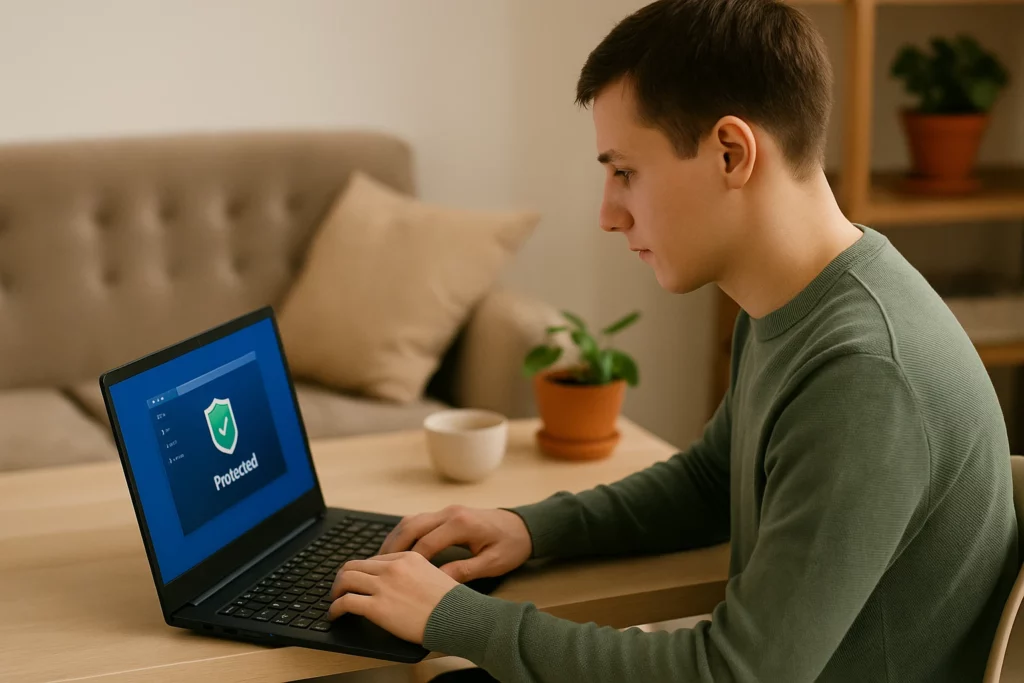
Do I Need Virus Protection in 2026?
Yes, but probably not the way you think. If you're running Windows 10 or 11, Microsoft Defender is already built in, already on, and genuinely good. For most home users, Defender plus smart habits beats a paid antivirus suite layered on top of bad habits, every single time. Where a paid suite earns its keep is the extras: ransomware rollback, webcam protection, coverage across a houseful of devices. Worth it for some households, unnecessary for others.
Here's the uncomfortable truth from my bench: most of the infected machines I clean had antivirus installed. The infection got in because someone clicked a convincing fake, not because software was missing. Protection software is the seatbelt. It isn't the driver.
Still on Windows 10? That's Your Biggest Risk Right Now
Windows 10 reached end of support on October 14, 2025. No more security patches, which means every hole discovered since then stays open on those machines permanently, and attackers know exactly where to look. If your computer is still running Windows 10 in 2026, this outranks every other tip on this page.
You have three options: upgrade to Windows 11 if the hardware qualifies, enroll in Microsoft's paid extended security updates as a stopgap, or replace the machine if it's too old to justify either. Not sure which bucket yours falls in? Bring it by the shop: my $75 diagnostic covers exactly this question, and it's credited toward any work you decide to do.
Turn On Automatic Updates: Everywhere
Updates aren't Microsoft nagging you. They're patches for holes criminals are actively exploiting, usually within days of discovery. Set Windows, your browser, and the programs you actually use to update automatically, then stop thinking about it. An updated system closes most doors before anyone knocks.
Put Two-Factor Authentication on Email and Banking First
Your email account is the master key to your whole digital life: every "forgot password" reset flows through it. Turn on two-factor authentication there first, then your bank, then everything else. If a site offers passkeys, even better: they can't be phished the way passwords can. Five minutes of setup buys you more real protection than any software purchase on this page.
Learn What Fake Virus Warnings Look Like
The most common "infection" that walks into my shop isn't a virus at all: it's a full-screen scare pop-up with a phone number, claiming to be Microsoft or Apple. Real security warnings never include a number to call, and Microsoft and Apple will never cold-call you. Don't call, don't click, and never let anyone remote into your machine. I wrote a full breakdown of fake virus warning pop-ups and how to shut them down, it's worth five minutes, because these scams cost New Jersey residents real money every week.
Skip the Free "Cleaner" and "Optimizer" Downloads
Registry cleaners, driver updaters, RAM boosters, mystery "PC optimizers": I remove these from customer machines weekly. At best they're junk that slows you down; at worst they're the delivery van for the actual infection. If a website tells you your computer needs cleaning, close the tab. Windows doesn't need any of it.
Back Up Like Ransomware Is Coming: Because It Is
Ransomware turns your files into hostages. A good backup turns that catastrophe into an annoyance. The rule I give customers is 3-2-1 in one sentence: three copies of anything you care about, on two different kinds of storage, with one of them somewhere else: a cloud service counts. If your only copy of the family photos lives on the computer itself, you don't have a backup. You have a wish.
Use a Password Manager and Stop Reusing Passwords
When a website gets breached (and they do, constantly) every account where you reused that password is burned at the same time. A reputable password manager generates a unique password for every site and remembers them all; you remember one. Pair it with the two-factor setup above and you've closed the two doors attackers use most.
What Protection Software Can't Do
One thing no security product does well: dig out an infection that's already established. Modern malware disables protection, buries itself deep, and quietly reinstalls after a basic scan "removes" it. If your machine is already showing the signs of a malware infection (pop-ups, redirects, sudden slowness, antivirus that won't stay on) prevention advice won't fix it. Removal will. Curious what a proper cleanup involves? Here's how virus removal services work.
My virus removal service is a $149 flat rate, with the $75 diagnostic credited toward the repair, and before the machine leaves my bench I'll set it up with year-round protection so we're not doing this twice.
Questions about any of this? I'm at 75 North Bridge Street in downtown Somerville, behind Bank of America. Drop-off only, no appointment needed: Monday–Friday 10am–5pm, Saturday 9am–2pm. Call (908) 428-9558 and I'll give you a straight answer.